

MCP integration is currently available only in the desktop Editor for Windows and macOS.
Supported Features
- Create and manage Rive files — add, rename, resize, arrange, and focus artboards.
- Inspect and edit the scene — query hierarchies, select objects, update properties, rename, duplicate, reorder, reparent, or delete elements.
- Build designs — create shapes, paths, layouts, component instances, component lists, and asset-based elements.
- Create animation and interaction — edit linear animations, state machines, states, transitions, conditions, keyframes, and interpolation.
- Work with data binding — create view models, properties, instances, bindings, and custom property groups.
- Edit scripts and shaders — manage Luau scripts and WGSL shaders, update source code, run diagnostics, recompile, test, search code, and read console output.
This list of features will evolve over time as more tools are added.
Installation
Using Cursor
Open Rive
Install and open the latest version of the Rive desktop app for Mac or Windows.
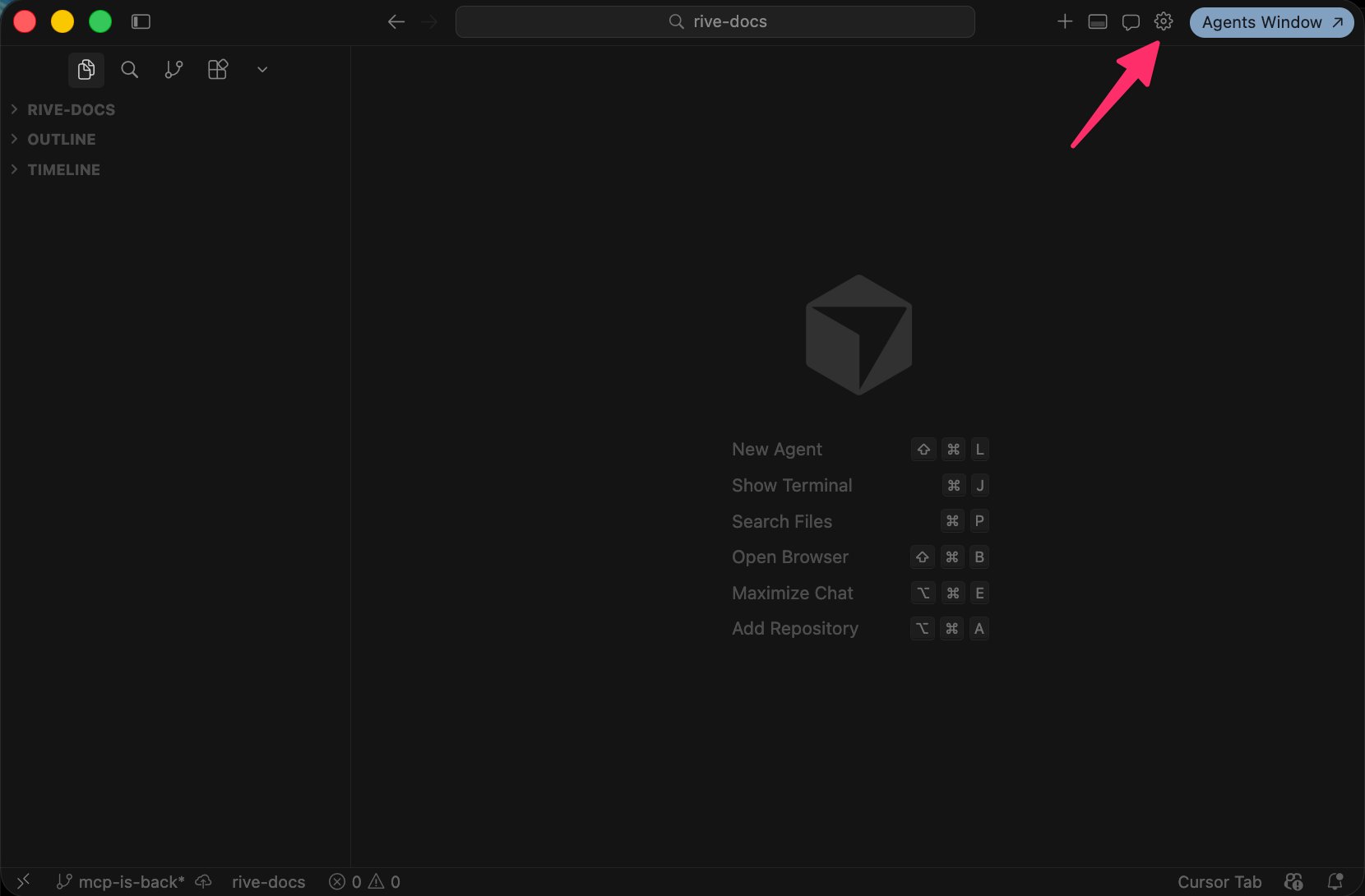
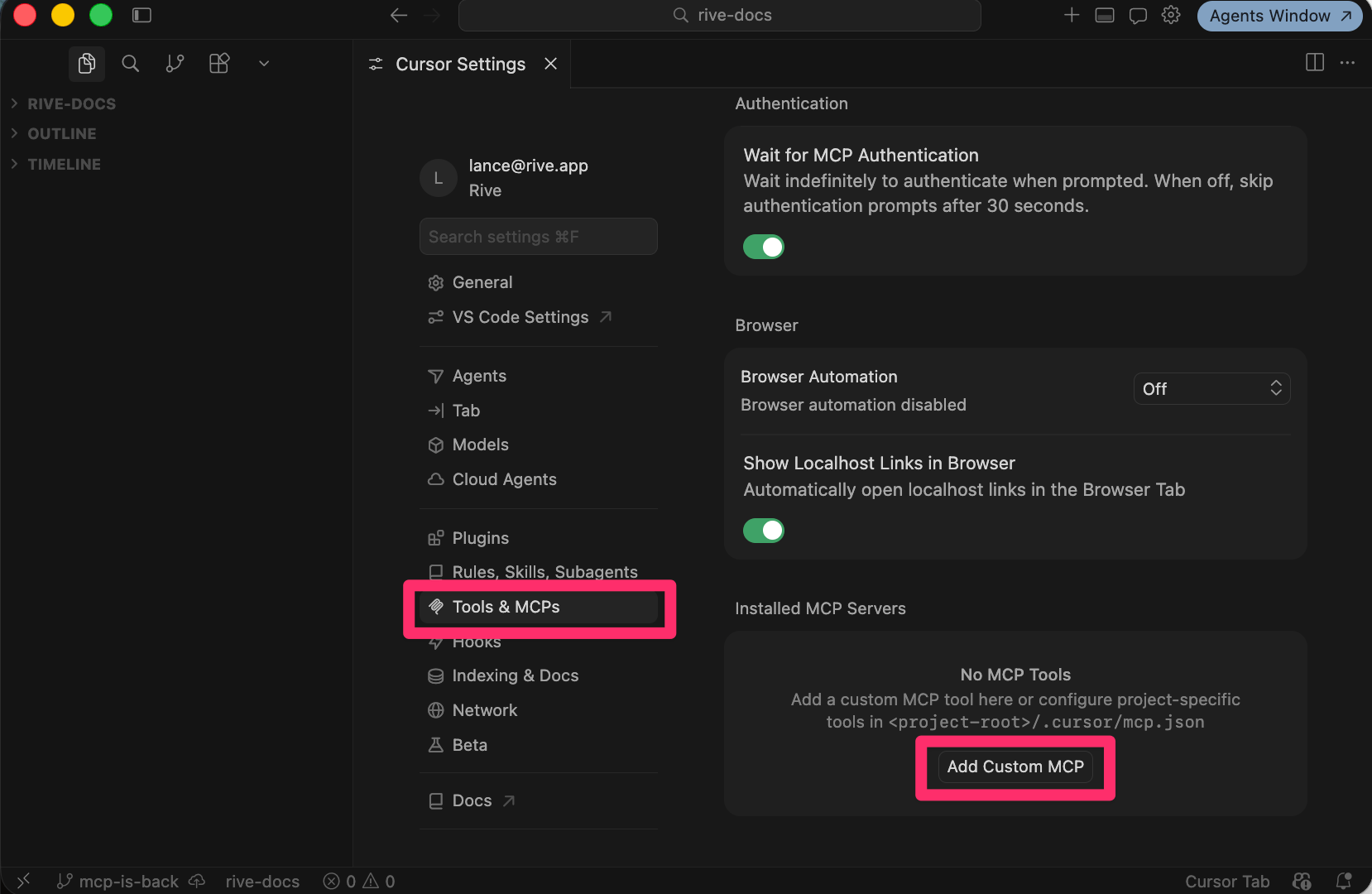
Set up Cursor
Create a Cursor account and install the app.
Using Claude in Terminal
Open Rive
Install and open the latest version of the Rive desktop app for macOS or Windows.
What can it do?
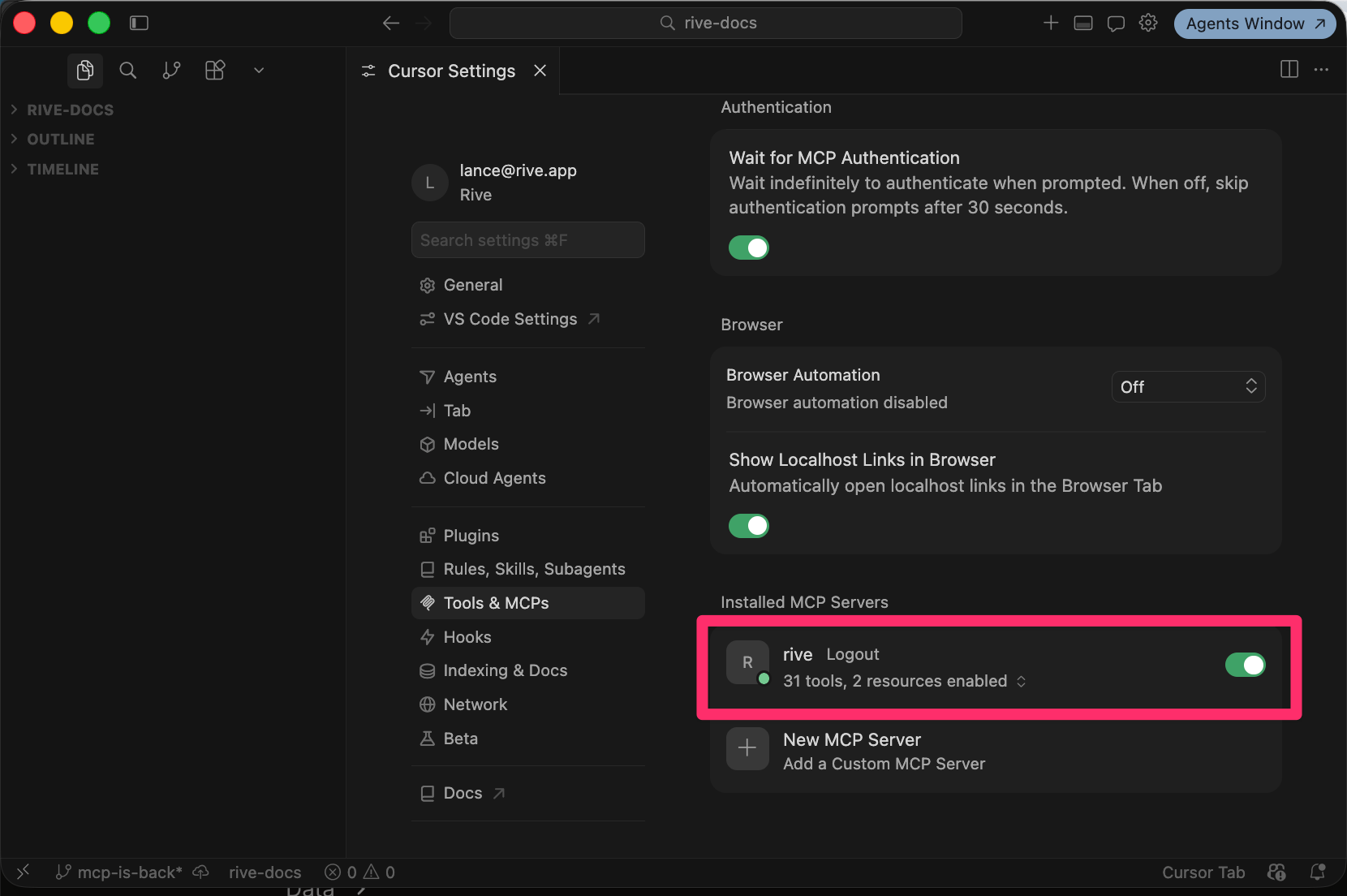
Once Cursor is installed and everything is set up correctly, it’s time to start prompting the AI.Enter your prompt
Type your prompt into the chat UI and hit enter. The AI will take a moment to process the request.Example prompt: